Shadowrocket Download Install and get it on any platform
Check your device's operating system and chip architecture, then choose the App Store or an installer from this site. If a system warning appears on first launch, follow the steps for your platform below.
Current version v2.2.92 · iPhone / iPad: $2.99 one-time via App Store; Mac, Windows, Android and Linux editions are free
Sources: App Store for iPhone / iPad; this site for other platforms
Current installer version v2.2.92
2 ways to get it: iPhone / iPad $2.99 one-time; other platforms free
Developer: Shadow Launch Technology Limited
App ID 932747118
This is the Shadowrocket official site and manual. The version shown below updates dynamically for installers on this site; check the App Store product page for the iPhone / iPad version and system compatibility. Before downloading, prepare your own subscription or server details.
iPhone / iPad costs $2.99 once via the App Store; Mac / Windows / Android / Linux editions are free. The system-aware button helps you choose more quickly. Use the platform cards below when downloading for another device or preparing an installer for another computer. Installers are available from this site's /dl/shadowrocket/ path.
iPhone / iPad
$2.99 one-time. Buy and install through the App Store. One purchase with the same Apple ID covers both iPhone and iPad; Mac / Windows / Android / Linux editions are free.
System requirements: iOS / iPadOS 13.0 or later; check the App Store product page for the stated requirements.
In the store, first verify the developer, official icon and app ID, then check the price shown in that storefront. If you see a cloud download button, the account usually has a purchase record; check Purchased first.
Free. Apple silicon and Intel installers are available. iPhone / iPad costs $2.99 once via the App Store; Windows / Android / Linux editions are also free.
System requirements: macOS 12 or later. Choose the .dmg file that matches your Mac's chip.
After downloading, open the disk image and drag Shadowrocket to Applications, then launch it from Applications. If the system blocks the first launch, confirm the file came from this page, then follow the installation instructions below.
Not sure which to choose? Open About This Mac and check Chip / Processor. Don't decide based on the computer's appearance or purchase year.
Windows
Free. Download the 64-bit .exe installer. iPhone / iPad costs $2.99 once via the App Store; Mac / Android / Linux editions are also free.
Architecture: x64 (64-bit).
Check System type under Settings → System → About, then run the installer and follow the prompts. If SmartScreen appears, verify the source using the instructions below. You do not need to disable system-wide security protection to install the app.
Free. Download the arm64 .apk installer. iPhone / iPad costs $2.99 once via the App Store; Mac / Windows / Linux editions are also free.
Architecture: arm64, used by most phones and tablets released in recent years.
Download using the system browser, then open the file from your downloads. If the system asks for permission to install, enable Allow from this source only for the browser or file manager you are using. If the download cannot continue in WeChat, use the top-right menu to open this page in a browser.
Free. Choose a package format for your distribution. iPhone / iPad costs $2.99 once via the App Store; Mac / Windows / Android editions are also free.
Architecture: x86_64; amd64 in a package name refers to the same architecture.
Use .deb for Debian / Ubuntu, .rpm for Fedora / openSUSE, or AppImage for other distributions. These are different delivery formats for the same platform; you do not need to install all of them. Check your architecture and distribution, then choose one format to avoid duplicate installations from mixed package managers.
Add execute permission to AppImage after downloading; see the installation instructions table for the command. The filename in the terminal must match the downloaded file.
Installation warnings and first launch
Desktop and Android installers from this site are not code-signed, so the system may block the first launch. Before allowing the app to run, confirm the installer came from a button above and its download path is under this site's /dl/shadowrocket/. These steps cover installation and launch only; they do not import configuration or establish a connection. Follow device management requirements if your device is managed by a school, employer or other organization.
Platform and warning
Steps
Checks before and after
Windows “Windows protected your PC”
On the SmartScreen page, select More info, verify the file source, then select Run anyway and continue through the installer.
If Run anyway is not available, a system policy may be restricting the action. Contact your device administrator; do not change organizational security policies. Do not repeatedly run an incomplete download.
macOS “Unable to verify developer”
Move the app to Applications and try to open it. Then go to System Settings → Privacy & Security, find the app that was blocked, select Open Anyway and confirm as prompted.
Confirm that the system page identifies Shadowrocket. In older systems, the settings entry may be called System Preferences; use the label shown by your system.
macOS “Damaged” warning
After confirming the app is in the location below and came from the correct source, run this command in Terminal: xattr -cr /Applications/Shadowrocket.appThen reopen the app.
The command applies only to the specified Shadowrocket.app. Do not change the path to the entire Applications folder. If the download is incomplete or the app is missing, download it again or check its location instead of broadening the command's scope.
Android “Allow from this source”
Open Settings from the installation prompt, enable Allow from this source for the browser or file manager that opened the installer, then return and continue installation.
The wording may vary slightly by device brand. You can turn off installation permission for that source after installation. If the app is incompatible with your device, check the arm64 architecture first; do not grant unrelated permissions repeatedly.
Linux AppImage cannot run
Open a terminal in the file's directory, type chmod +x followed by the actual AppImage filename, and press Enter to add execute permission. Then open the file. You can drag the file into the terminal to complete its path.
Paths containing spaces need quotation marks or correct escaping. Do not treat the display name in browser downloads as the full path. If the app still will not start after adding execute permission, check the terminal output to identify an environment issue.
Linux Install .deb / .rpm
On Debian / Ubuntu, run sudo apt install ./filename.deb from the downloads directory, replacing “filename.deb” with the actual filename. On Fedora / openSUSE, you can open .rpm with the system software installer.
Keep ./ in the .deb command; it specifies a local file in the current directory. If the package manager reports a dependency issue, read the error first. Do not use a command for one distribution on another.
Store and account regions: iPhone / iPad only
The app is not available in the mainland China App Store. The country or region associated with an Apple ID determines the content shown in the store. Device language, physical location and store region are separate settings. If a search returns no results, check the account and region used for Media & Purchases instead of repeatedly changing the phone's language.
Open Settings, tap the Apple ID account at the top, then open Media & Purchases.
Select View Account, complete verification if prompted, then check the current setting under Country/Region.
If you need to change it, use Change Country or Region on that page and follow Apple's requirements for payment methods, account balance, existing subscriptions and other items.
Return to the App Store and confirm you are using the intended account, then open the product link on this page and check the developer and app ID.
Whether a region change is available depends on the account's current status; seeing the option does not guarantee an immediate change. If you cannot change the region, first read the reason shown on the account page. Do not sign out of the entire device without understanding the consequences just to search for the app. Purchases and downloads belong to the Apple ID used to make the purchase.
The US App Store price for iPhone / iPad is a one-time $2.99; other storefronts show local currency. Mac / Windows / Android / Linux editions are free. Before paying, check the current price and compatibility on the App Store product page; the installer version shown on this site does not replace the store's version information.
Verify the app and compare with the official interface
Check the official icon, developer and app ID together.
Check these three details in the App Store
Developer: Check the developer name on the product page. It should be Shadow Launch Technology Limited. Do not rely on the app name in search results alone.
Official icon: A rocket with a blue-purple outline on a white background. Similar names or colors are not a substitute for checking the developer.
App ID: The App Store link on this page ends in id932747118, corresponding to app ID 932747118.
A free listing with the same name in the App Store is an imitation, not the product described here. Distinguish the listed price from a cloud download button shown to an account that already owns the app: the cloud button restores an existing purchase and does not indicate the original price. iPhone / iPad costs $2.99 once; Mac / Windows / Android / Linux editions are free.
Check installer sources on computers and Android
Installers for these platforms are provided on this page through this site's /dl/shadowrocket/ path. Use the installer links here; do not substitute reposted attachments from search results or modified files. Allowing an app to run only permits the specified app to launch; it does not replace checking its source.
Screenshots identify the interface; they are not setup instructions
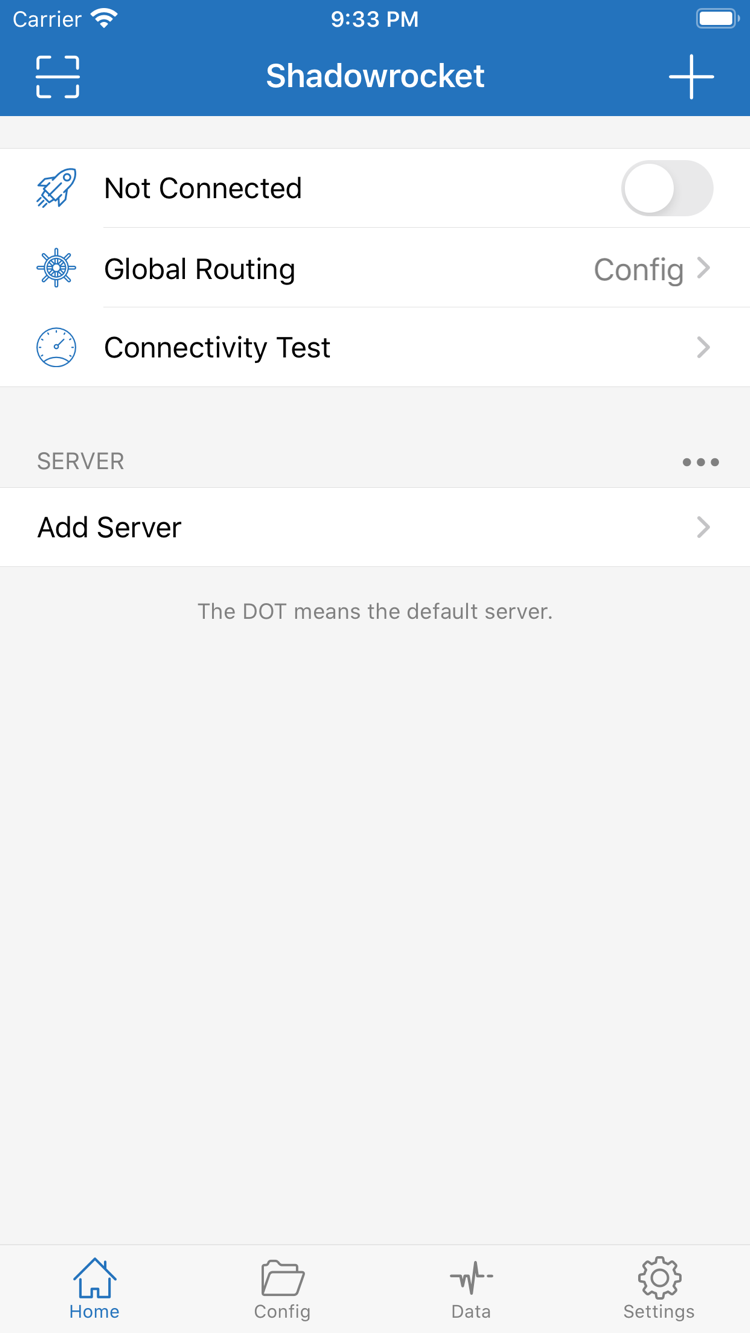
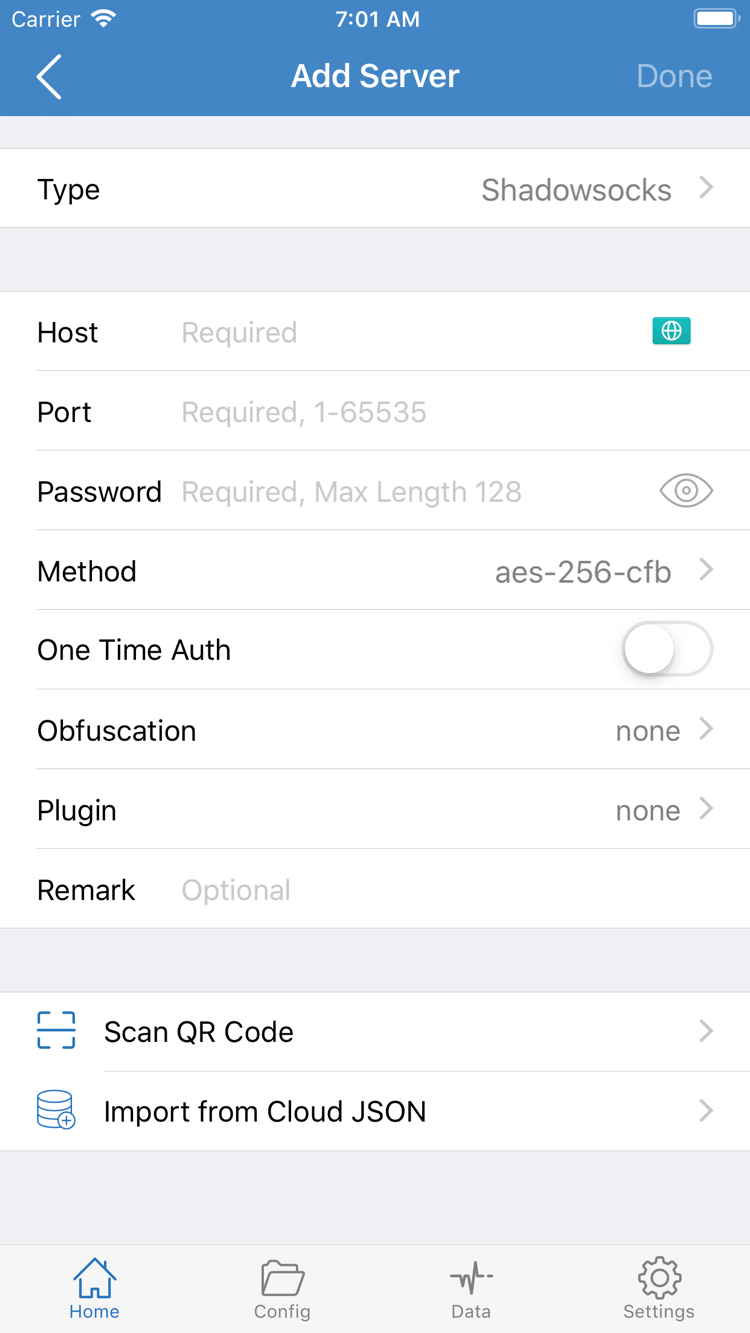
The screenshots on the right show the official English App Store interface. Home shows Not Connected, Global Routing, Connectivity Test and the SERVER group. Add Server shows Type, Host, Port, Password and Method, as well as Scan QR Code and Import from Cloud JSON.
The screenshots illustrate the page structure; they do not mean that users must have the same SERVER entries. The list after installation depends on the details imported by the user. Use your own service details for server addresses, authentication and protocol type. Layouts may vary across systems and interface languages, so do not judge whether installation succeeded based on the position of a single label.
Home: connection switch, Global Routing and existing server list.Add Server: enter details for an existing server or use an import option in the interface.
New devices, reinstalling and restoring purchases
On iPhone / iPad, app purchase records and configuration data are handled separately. Redownloading the app restores the client; restoring Config files, subscriptions and server settings restores your setup. Completing the first does not restore the second, so make sure your own data is backed up before changing devices.
On the new device, confirm that the App Store is signed in to the Apple ID that originally purchased Shadowrocket. Pay particular attention to the account used for Media & Purchases.
Open App Store → Account → Purchased, find Shadowrocket and download it again. On some systems, the purchase list is under Apps or My Apps; use the labels shown in your interface.
One purchase with the same Apple ID covers both iPhone and iPad; redownloading from Purchased does not require another payment. The original iPhone / iPad price is a one-time $2.99; Mac / Windows / Android / Linux editions are free.
After opening the client, restore your configuration backup or reimport your existing subscription or server details. Check the list, Global Routing and Config selection, then test the connection.
If the store still shows a price, check the account and purchase history before paying again. A switched account, a purchase recorded under a different account or a change in storefront availability must each be checked in the store. Restoring a download does not restore the validity period of an external service; availability depends on your own service status.
When changing Mac / Windows / Android / Linux devices, download the installer from this page again and choose a version for the new device's architecture and system. Before removing the app from the old device, export any configuration you need to keep and store data containing authentication details securely. Do not post configuration screenshots, full subscription URLs or sensitive log fields publicly.
For the steps from importing details through connecting, see the Shadowrocket guide. To check DNS, On Demand or other Settings after migration, see the Settings reference.
Two pricing options and what you need to get started
iPhone / iPad: pay $2.99 once in the App Store, with no monthly client fee; one purchase covers both device types using the same Apple ID. Mac / Windows / Android / Linux: the client is free; download the appropriate installer from this site. App Store storefronts show local currency; the price on the store page applies.
The client reads configuration, processes traffic according to rules and establishes connections. External server addresses, authentication methods and availability are not determined by the client purchase record. So if the list is empty after payment or installation, details have not yet been added; you do not need to buy the client again. Make sure you have usable details, then follow the tutorial's Subscribe or Add Server steps.
Updates also vary by platform: check the App Store for iPhone / iPad updates; for Mac / Windows / Android / Linux, return to this page to download the matching installer. Back up your current configuration before updating, quit the old app, then check your list and settings after installation. Even if everything works, read the update prompts first; do not delete the existing configuration directory without a backup.
Download and installation FAQ
Can I use Shadowrocket on a computer or Android phone?
Yes. The Mac (Apple silicon and Intel), Windows, Android and Linux editions are free; choose the matching installer on this page. iPhone / iPad users pay $2.99 once via the App Store. Every platform requires your own subscription or server details.
Which Mac edition should I choose: Apple silicon or Intel?
Open About This Mac from the Apple menu. Choose the Apple silicon edition if the chip is listed as an Apple chip, or the Intel edition if the processor is listed as Intel. The Mac edition is free; iPhone / iPad costs $2.99 once via the App Store, while Windows / Android / Linux editions are also free.
What should I do if Windows warns that the app may be risky?
First confirm that the installer came from this site's /dl/shadowrocket/ path. If SmartScreen says “Windows protected your PC,” verify the source, select More info, then select Run anyway. Ask your administrator to handle devices managed by an organization's policies; do not disable system-wide security protection.
What if Shadowrocket does not appear in App Store search?
The app is not available in the mainland China storefront. The country or region associated with an Apple ID determines the store's content. Check it under Settings → Apple ID → Media & Purchases → View Account → Country/Region. Changes depend on factors such as account balance, subscriptions and payment methods; follow the system prompts.
Do I need to buy it again after changing or resetting devices?
On iPhone / iPad, use the Apple ID that made the original purchase and redownload it from App Store Account → Purchased. One purchase covers both device types. The original iPhone / iPad price is a one-time $2.99; Mac / Windows / Android / Linux editions are free and can be downloaded again after changing devices. Restore configuration data separately.
Can I install it on iPad, and what are the system requirements?
Yes. iPhone / iPad require iOS / iPadOS 13.0 or later; check the App Store product page for the stated requirements. iPhone / iPad costs $2.99 once via the App Store and works on both devices with the same Apple ID. Mac / Windows / Android / Linux editions are free.